Editing Comments
From the Manage Comments screen, select the comment you would like ot edit by clicking the title of that comment. This displays the Edit Comment screen.
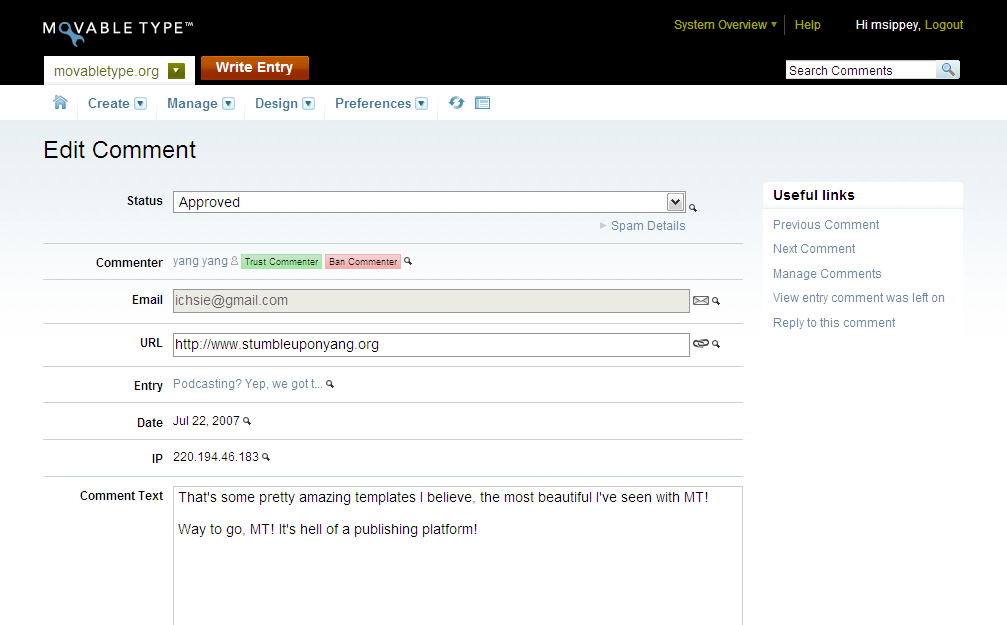
From this screen you can view information about the comment, edit the comment’s status, the URL of the commenter or the comment text.
Viewing Details about Spam Filtering
To view more information about how the comment was treated by your spam filtering plugins, click on the “Spam Details” link underneath comment Status. This will display details about how your plugins rated the comment, as well as the aggregate score of all of the plugin ratings.


