Refreshing Templates
Movable Type allows users to reset their templates to their “factory defaults.” This can be done for all your templates within a blog, or it can be done on a template-by-template basis. This makes it easy to:
- revert to a known and working default
- update a single template that may need to be updated after an upgrade
When templates are refreshed, each template will be reverted to the most current version of that template that ships with Movable Type.
How to Refresh a Single Template
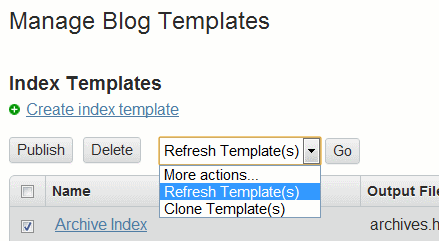
If you want to refresh a single template, select the checkbox next to the template from your template listing screen. Then from the pulldown menu select “Refresh Template(s)” and click the “Go” button.
Refreshing all of the templates for an entire blog
- To refresh all of the templates for an entire blog, switch to the System Overview area of Movable Type by choosing “System Overview” from the blog selection menu.
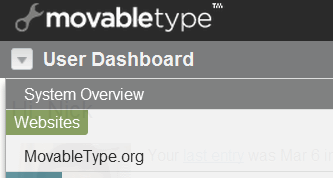
Then go to the Manage Blogs screen by visiting Manage > Blogs from the main menu.
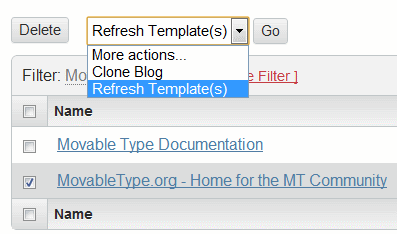
Locate the blog you wish to refresh the templates for and select it by clicking on its checkbox.
From the “More actions…” drop down menu in the action bar, choose “Refresh Template(s)” and click the “Go” button.
- Movable Type will display a list of the templates that the system has refreshed. Movable Type will also create a backup copy of all the templates you replace by refreshing your templates.
Note: You will need to publish your blog for your changes to be reflected on your site.
Refreshing a Template Set
If you wish to clear out all the changes you have made and start fresh with a new theme, or your current theme, you can apply an entire template set to your blog. This often has the effect of changing the look and feel of your entire site in one simple action.


