Accessing Custom Fields in Your Templates
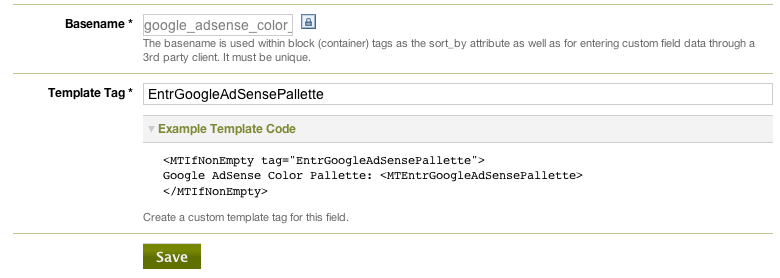
As a custom field is being defined, a basename for the field will be created for you automatically. This basename will serve as the basis for the template tag name used to reference the value contained by that field for the specific entry/page/folder/category in context. A basename is pre-populated for you as a convenience, but can be customized by editing the “Template Tag Name” associated with a custom field.
Movable Type will also present you with a sample template tag that you can cut and paste into a template to display the value of that field for the object in context.
For example, suppose you have a field named “Current Mood” which has a basename of “mood.” You can display the mood field for an entry using the following template tag code:
<mt:Entries>
   <h2><mt:EntryTitle></h2>
   <mt:EntryBody>
   <p>My mood: <mt:EntryDataMood></p>
</mt:Entries>
Note: The template tags used to access data stored within a field can easily be customized.
Display “0”
Movable Type considers the input value “0” to be null. You have to specify directory as below to display “0”.
<mt:If tag="TAG_NAME" eq="0"><mt:TAG_NAME></mt:If>
Accessing and Display Custom Field Assets
Movable Type allows users to define asset specific custom fields. These custom fields allow authors for instance to select or upload a file associated with a page or entry. Once an asset has been selected, a designer may then need to make changes to your design templates in order to display details about that asset, including a thumbnail or other meta data like file size, or mimetype.
To access this information, one can use all of Movable Type’s build in asset related template tags, but before they can do that, the designer must first load the custom field asset into the current context using the custom fields template tag.
Example
Let’s suppose you had a custom field that defined a custom header image, or mast head, for an entry. If the custom field has been given a value, you want to display that image on your blog. The following template code will conditionally display an HTML <img> tag for the related mast head custom field:
<mt:IfNonEmpty tag="EntryDataMastheadImage">
     <mt:EntryDataMastheadImageAsset>
         <img src="<mt:AssetURL />" />
     </mt:EntryDataMastheadImageAsset>
</mt:IfNonEmpty>


Merv on May 15, 2009, 6:56 a.m. 返信
The additional resources are very helpful. The above example has a very subtle addition to the custom field asset tag. Note Asset is appended to the custom field tag name to create the context to use the AssetURL tag. I read and tried this this several times before going to additional resources where the appended “Asset” was clearly pointed out. Hope this saves someone some time.
thirteencentpinball on September 3, 2009, 5:21 p.m. 返信
The link in “To access this information, one can use all of Movable Type’s build in asset related template tags” is broken, FYI.
fred!head on October 11, 2009, 6:01 a.m. 返信
FYI the Custom Fields breadcrumb link is broken. I’d also encourage you to incorporate Merv’s comment with an explicit example that shows the difference between a tage with Asset appended. It took me five minutes and clicking over to the link to get the difference.
Sunset Bill on February 6, 2010, 8:18 a.m. 返信
Sure could use the Additional Resources, but all I’ve gotten in several attempts over several days is a “currently unavailable” page. The broken link thirteencentpinball mentioned sure looks like it could be useful, too. Really banging my head against the wall trying to work this out.
Violet on March 26, 2010, 7:33 a.m. 返信
The article referenced in the Additional Resources section can be found here
http://blog.plasticmind.com/movable-type/image-customfields-in-movable/
Jesse Gardner who ran movabletweak.com folded all of the articles on movabletweak.com into his plasticmind.com website.
Here’s the directory of all his Movable Type related posts:
http://blog.plasticmind.com/movable-type/
Gercek Karakus on October 22, 2010, 1:40 p.m. 返信
Thanks so much Merv. Appending Asset to custom field name does the trick.