Managing Categories and Folders
Entries and Pages
Blog entries can be organized by topic or content using categories. In doing so, entries can be effectively grouped together for the purposes of search from either the administrative interface or the published blog.
On the other hand, folders are used as the publishing location for pages. The combination of folders and pages make it easy to use Movable Type as a general purpose content management system.
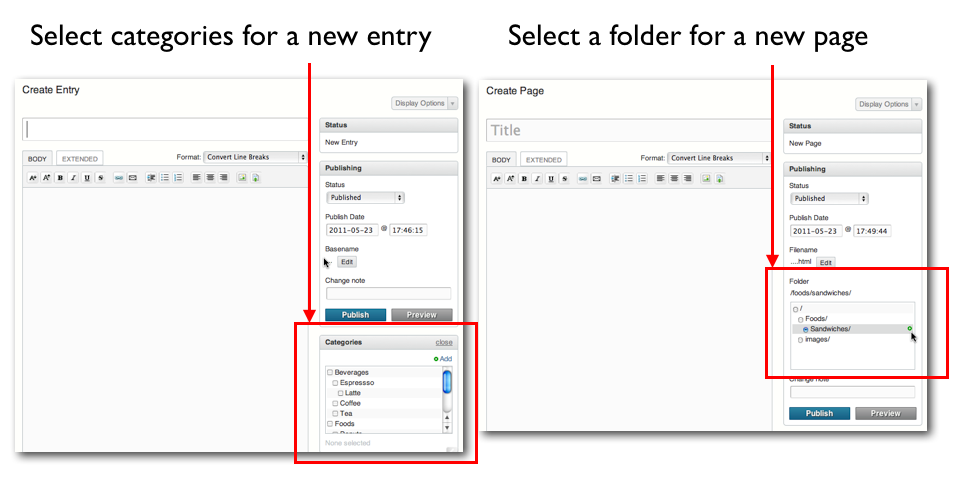
Working with categories
When creating or editing an entry, authors can assign one or more existing categories to an entry. One category can be assigned as the primary category which will be listed along with the entry in the entry listings. In addition, multiple secondary categories can be assigned to cast a wider net and allow entries to span classification.
Assigning categories to an entry
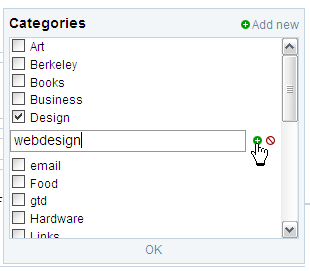
You can select an existing category by clicking on the checkbox next to the category name. To assign a new category to an entry, click the “Add” link in the category widget.
To add a new subcategory, place your cursor over the category under which you would like to create a new subcategory. Click on the green “plus” icon. This will open up a field where you can type the new subcategory name. To save and apply that new subcategory to your entry, click on the green “plus” icon.
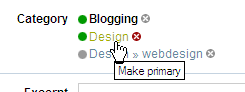
Setting a category as your primary category
By default, Movable Type will assign the first category you click on as the entry’s primary category. To assign a different category as your primary category, locate and click on the category name. The system will make that category the entry’s primary category.
 mt:EntryPrimaryCategory was introduced in Movable Type 5.1.
<mt:Entries>
<mt:EntryPrimaryCategory><$mt:CategoryLabel$></mt:EntryPrimaryCategory>
</mt:Entries>
Removing a category from an entry
To remove a category from your entry, locate the category you wish to remove and click on the red “x” icon to the right of the category name. This will remove the category from your entry.
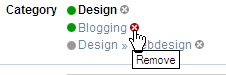
Changes to your categories will not take effect until you save your entry.
Working with folders
When creating or editing a page, authors can place that page in a folder. Unlike blog entries, where an author can assign one or more categories to an individual blog entry, pages can only live in one folder at a time. You can create or assign a folder to a page from the publishing widget of the new/edit page screen.
Managing categories and folders
To manage the list of categories associated with a blog, click on [Entries] > [Categories] from the side menu. To manage the list of folders associated with a blog/website, click on [Pages] > [Folders] from the side menu.
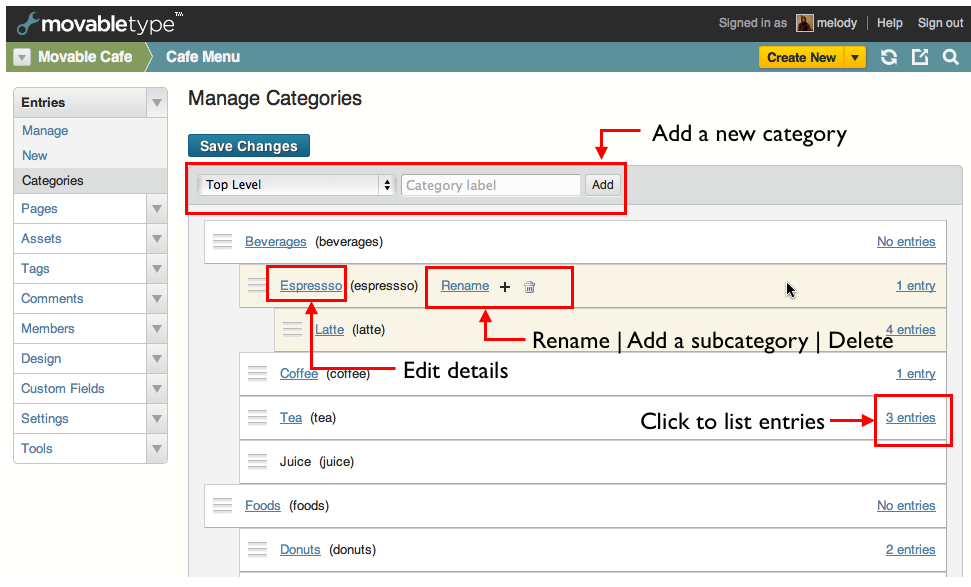
You can add,edit, and delete a category/folder from the hover menu.
- Label
Click to move to “Edit Category/Folder” in details.
- Edit Button
Click to rename the label and the basename.
- [+] Button
Click to add a sub category/folder
- Delete Button
Click to delete
- Number of entries/pages
Click to display a list of entries/pages that are in the current category/folder.
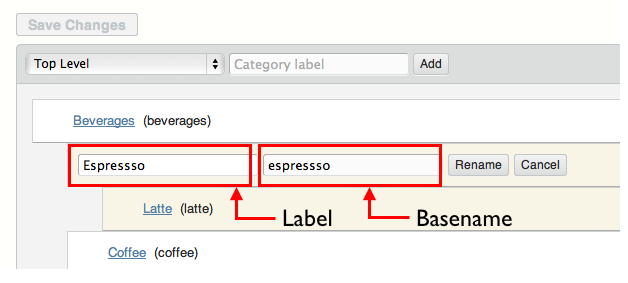
Creating a new category/folder
Here are ways to add a new category/folder.
- Choose the root or a category from the pull-down menu to add a new category.
- Mouse over a category in the table and click the [+] button to add a sub category.
Editing the details
Each category/folder has following details.
- Label
- It serves as the identifier in any listing tables, selection menus and on the published blog. It is displayed in templates using the tag <$MTCategoryLabel$> , <$MTFolderLabel$>
- Basename (Path)
This is used in URLs and in the directory structure of your published blog files. As noted above, it is auto-generated upon creation of each category/folder and remains the same even if the label changes, allowing you to do so without breaking incoming links to your archives. It is displayed in templates using the tag <$MTCategoryBasename$> , <$MTFolderBasename$>
- Description
- This field is optional, but gives you the ability to describe the detail. It is displayed using the tag <$MTCategoryDescription$>, <$MTFolderDescription$>
- TrackBack settings
- You can enable inbound TrackBacks for a category, or specify TrackBack URLs to which you would like to send TrackBack pings whenever an entry is posted for that specific category.
Drag & drop sorting
You can drag a category and drop it to the desired location in a hierarchical list.
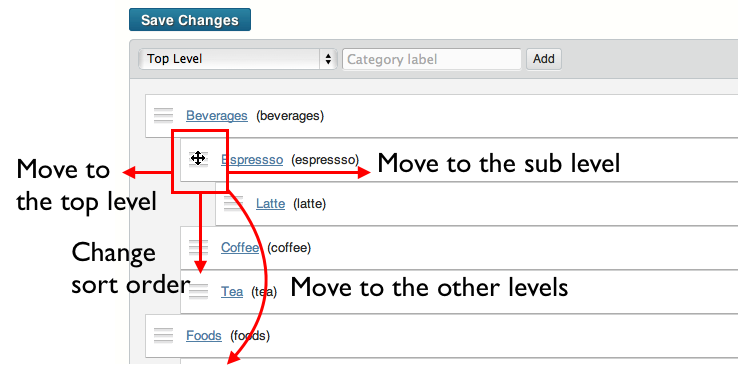
Note: Once you’ve moved the desired category or subcategory, you’ll need to publish your site for the change to take effect publicly. Click the publish icon in the main menu and follow the prompts.
Save Changes
Please do not forget to click [Save Changes] button after updating the list, otherwise the changes will be discarded.
You need to publish your site for the change to take effect publicly. Click the publish icon in the main menu and follow the prompts.
Deleting a category/folder
When a category is deleted, all entry assignments (but not the entries themselves) are removed. Additionally, if you have set the DeleteFilesAtRebuild directive in Movable Type’s configuration file, the category archive pages for that category are removed from the file system.
Displaying a list of categories on your site
<mt:SubCategories> and <mt:TopLevelCategories> tags are used to display a list of categories on your site. The following code is the category widget in the default theme.
<mt:TopLevelCategories>
  <mt:SubCatIsFirst>
    <ul>
  </mt:SubCatIsFirst>
  <mt:If tag="CategoryCount">
    <li><a href="<$mt:CategoryArchiveLink$>"<mt:If tag="CategoryDescription"> title="<$mt:CategoryDescription remove_html="1" encode_html="1"$>"</mt:If>><$mt:CategoryLabel$> (<$mt:CategoryCount$>)</a>
      <mt:Else>
        <li><$mt:CategoryLabel$>
  </mt:If>
  <$mt:SubCatsRecurse$>
</li>
<mt:SubCatIsLast>
</ul>
</mt:SubCatIsLast>
</mt:TopLevelCategories>
A new attribute sort_by was introduced in Movable Type 5.1. The default value is user_custom, the sort order that you specified in the Manage Categories screen. You can also set the following values to sort_by.
- label
- description
- basename
- created_on
- modified_on
- user_custom (default)
Additionally, use sort_order attribute to specify ascending or descending. Here is an example:
<mt:SubCategories sort_by="label" sort_order="descend">
</mt:SubCategories>
When <mt:CategoryPrevious> and <mt:CategoryNext> are used in this block, they will display the previous and next categories that are specified in mt:SubCategories.
Note: mt:Categories tag ignores the sort order and hierarchy, thus it doesn’t support sort_by and sort_order attribute.
Displaying a list of folders on your site
<mt:Subfolders> and <mt:TopLevelFolders> tags are used to display a list of folders on your site. The following code lists folders and pages hierarchically.
<mt:TopLevelFolders>
    <mt:SubCatIsFirst><ul></mt:SubCatIsFirst>
    <mt:If tag="FolderCount">
        <li><$mt:FolderLabel$> (<$mt:FolderCount$>)
             <mt:Pages sort_by="title" sort_order="ascend">
                <mt:PagesHeader>
                  <ul>
                </mt:PagesHeader>
                <li class="page page-<$mt:PageID$>"><a href="<$mt:PagePermalink$>"><$mt:PageTitle$></a></li>
                <mt:PagesFooter>
                </ul>
                </mt:PagesFooter>
              </mt:Pages>
    <mt:Else>
        <li><$mt:FolderLabel$>
    </mt:If>
    <$mt:SubCatsRecurse$>
        </li>
    <mt:SubCatIsLast></ul></mt:SubCatIsLast>
</mt:TopLevelFolders>
You can specify sort_by and sort_order as same as mt:SubCategories.


